
iOS Shortcut
Save links to Shiori directly from the share sheet on your iPhone or iPad. Set up once, use everywhere.
What you'll need
- An iPhone or iPad running iOS 16 or later
- The Shortcuts app (pre-installed on iOS)
- A Shiori account
1. Open the iOS Shortcut dialog
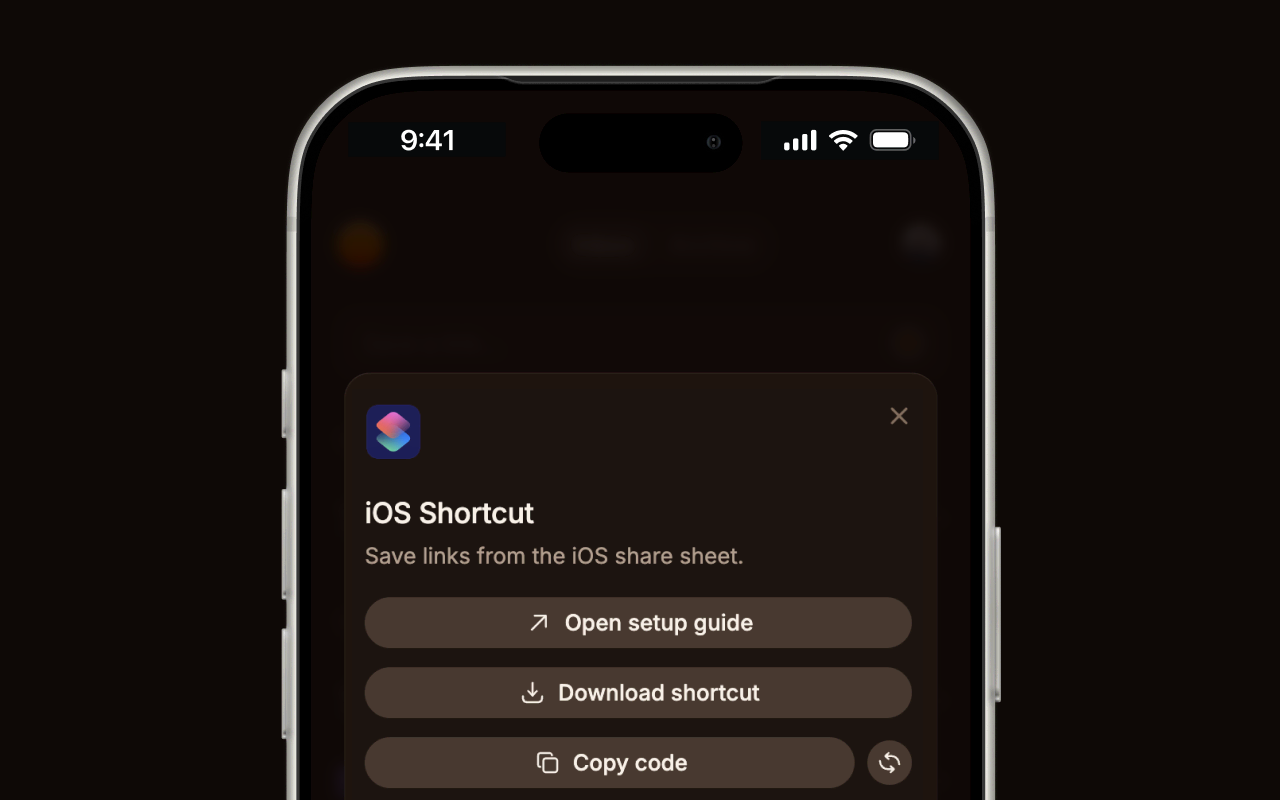
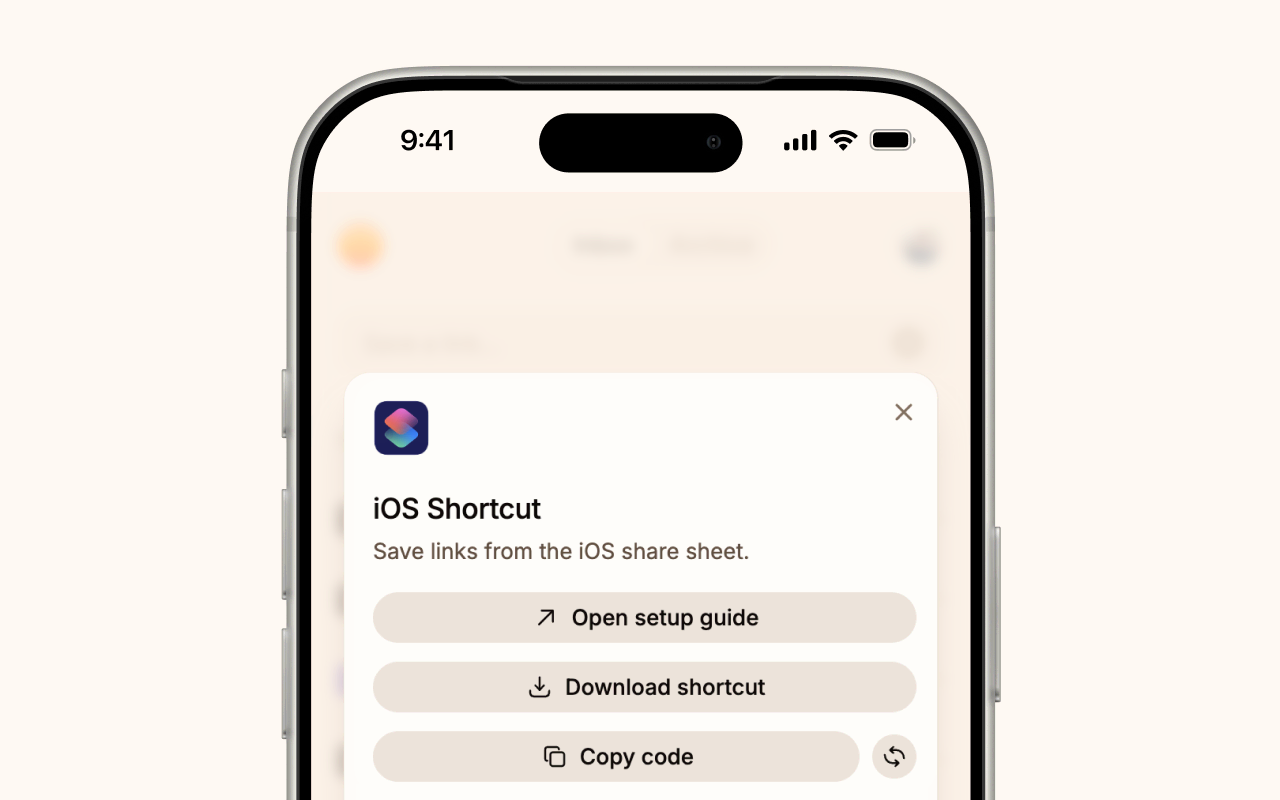
Sign in to Shiori on your iPhone or iPad. Tap the iOS Shortcut option in the profile menu to open the setup dialog. You'll see a Download shortcut button and a Copy code button — you'll need both.
Tap Copy code to copy your shortcode to the clipboard. This is a short authentication code that connects the shortcut to your Shiori account.
2. Download the shortcut file
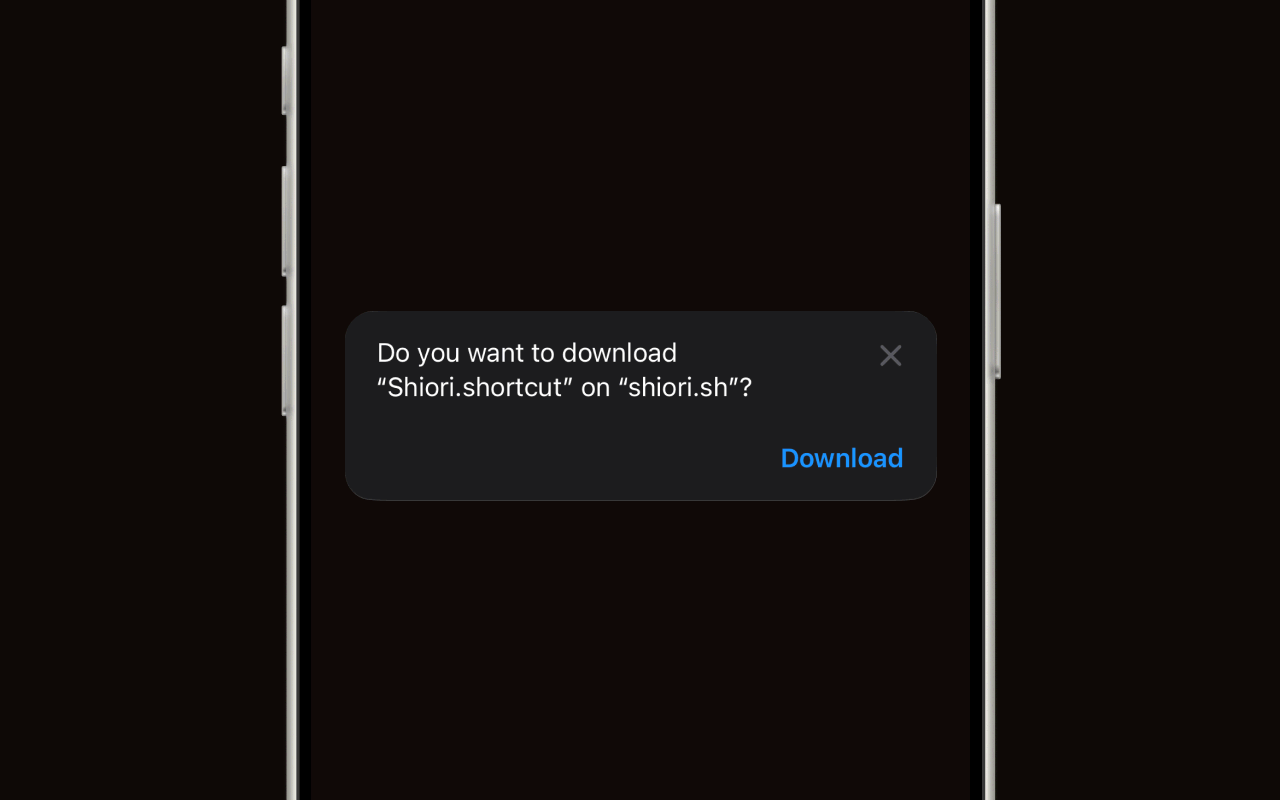
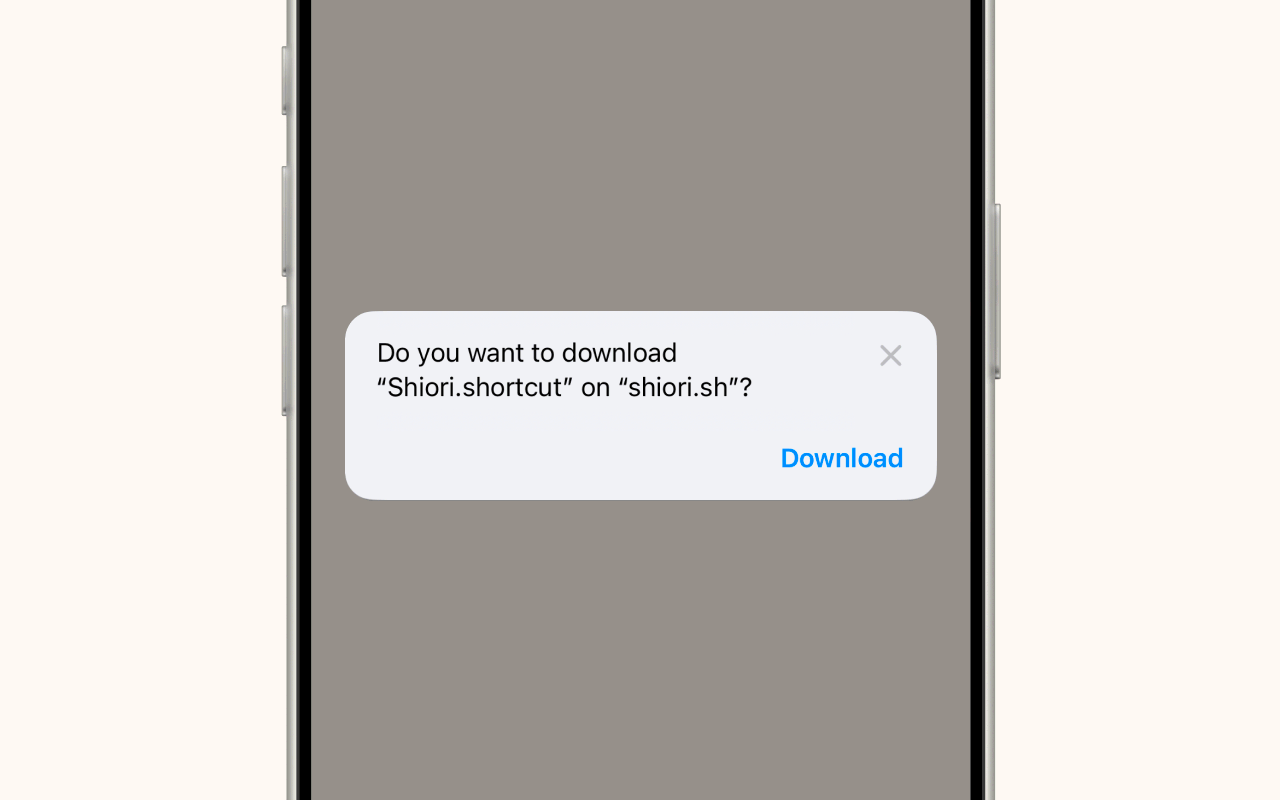
Tap Download shortcut. Safari will ask if you want to download "Shiori.shortcut" — tap Download.
3. Open Safari's downloads
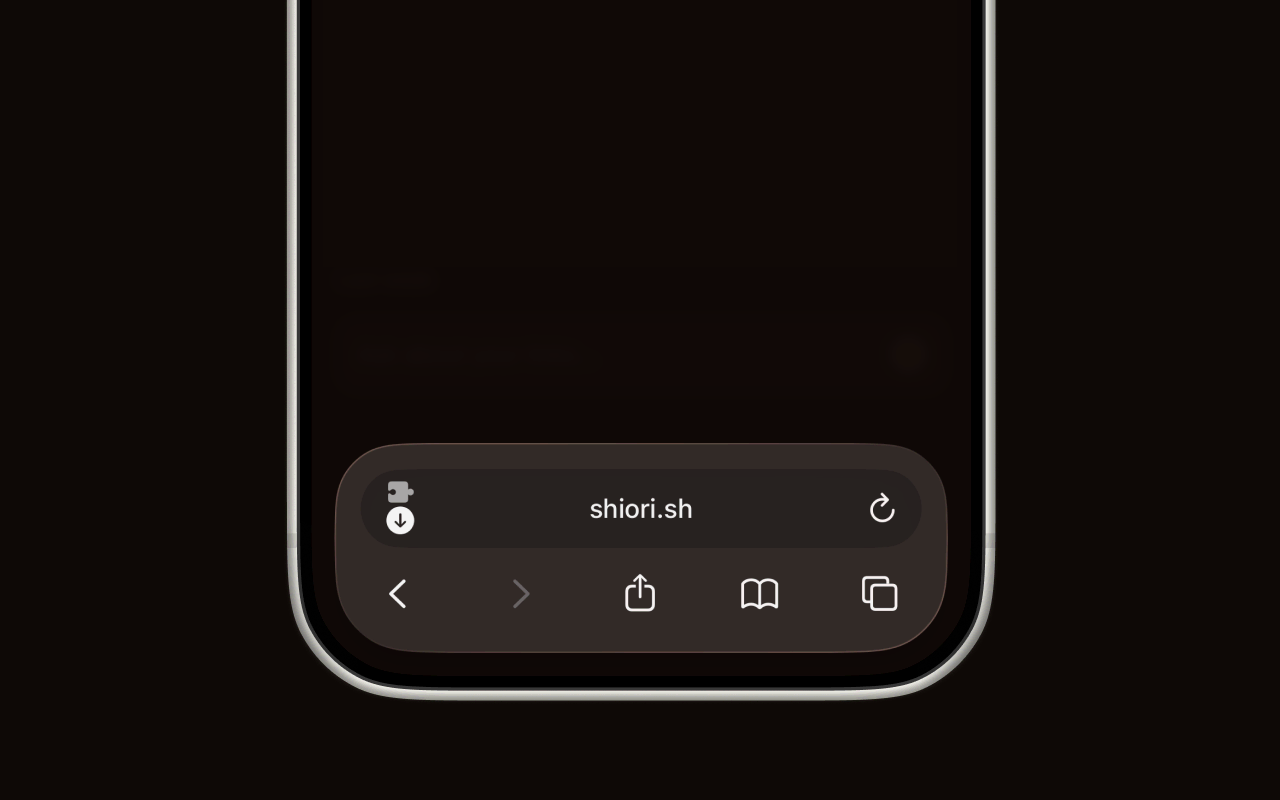
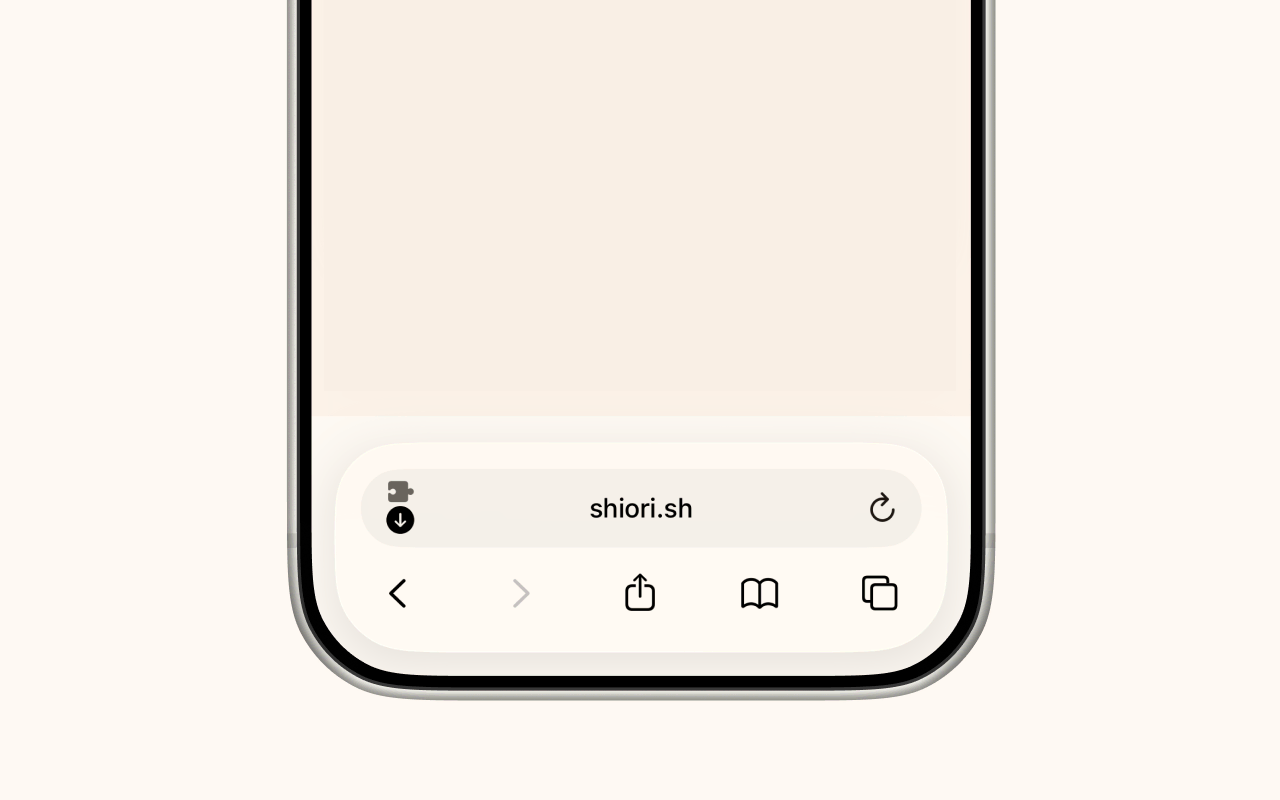
After the download finishes, you need to open it. Tap the Aa menu button (or ... menu) in Safari's address bar. Pictured below, the downloads icon is on the left side of the address bar.
4. Find the file in Downloads
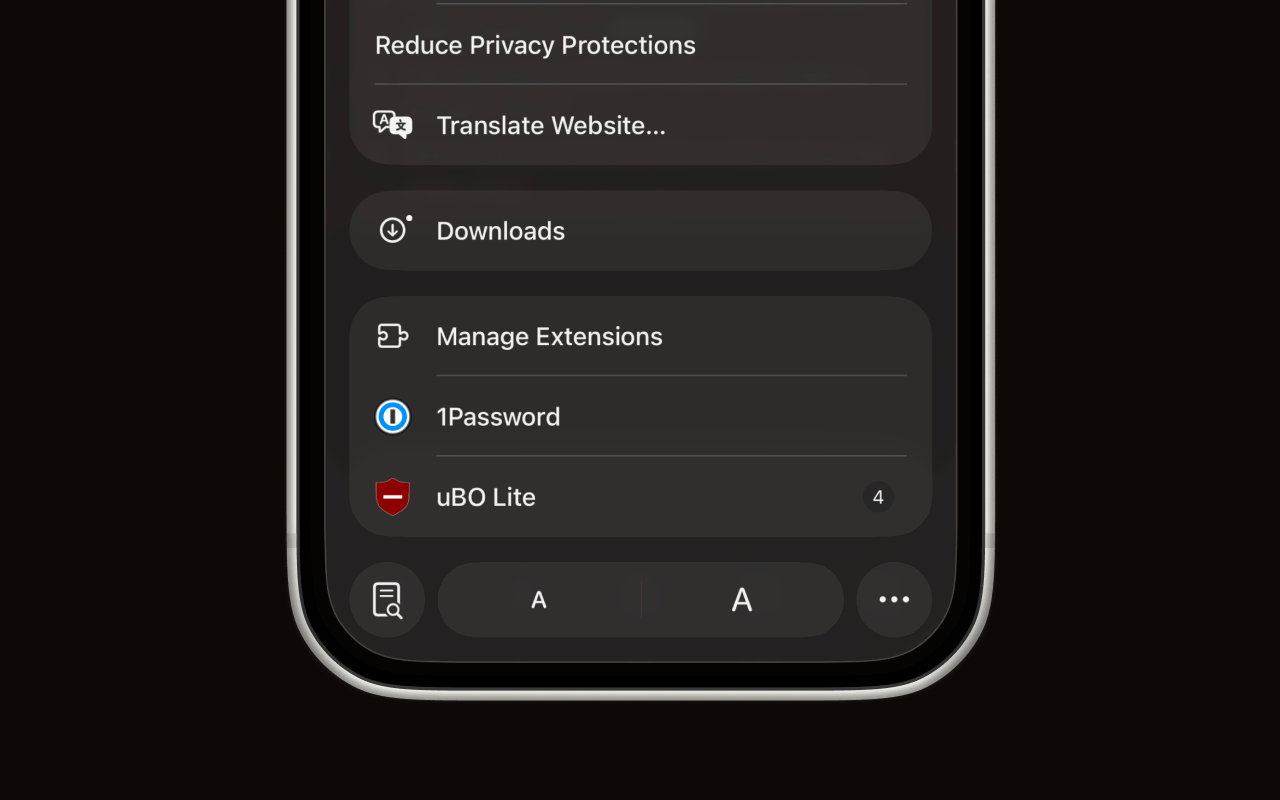
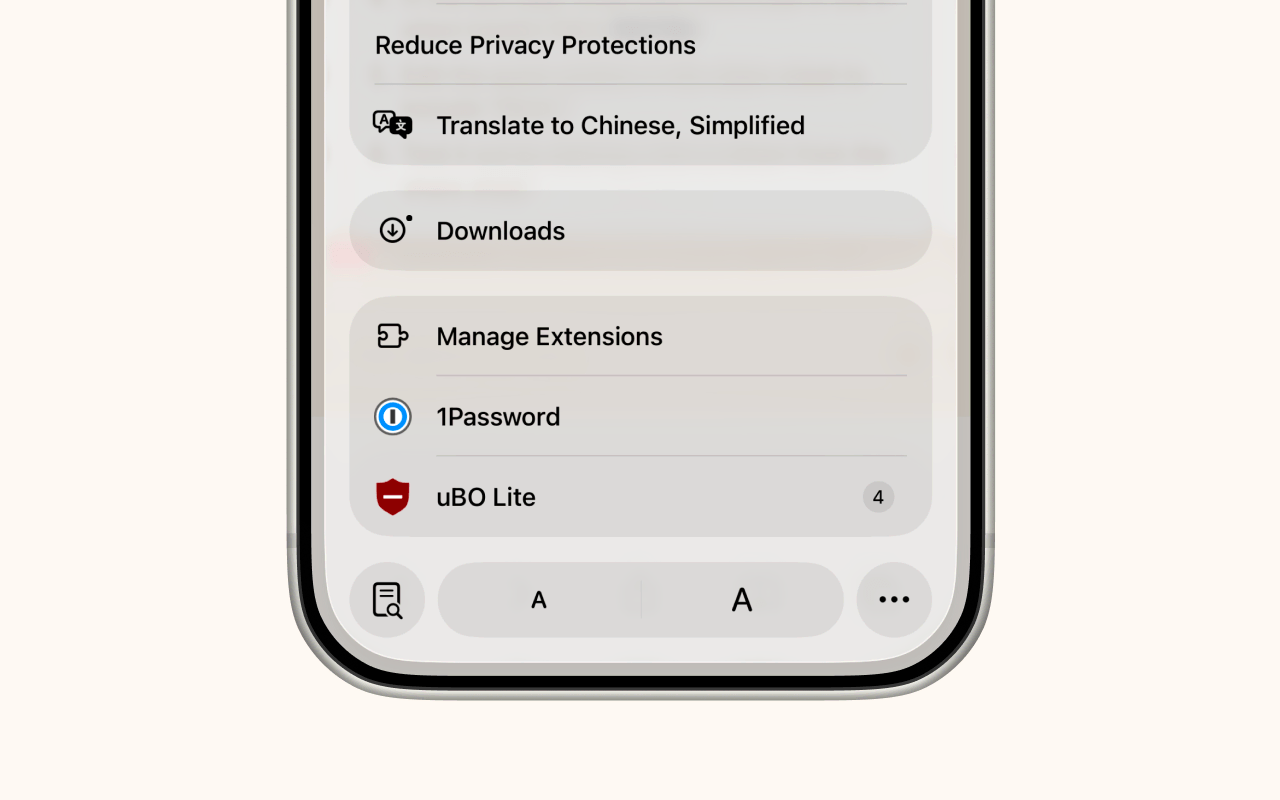
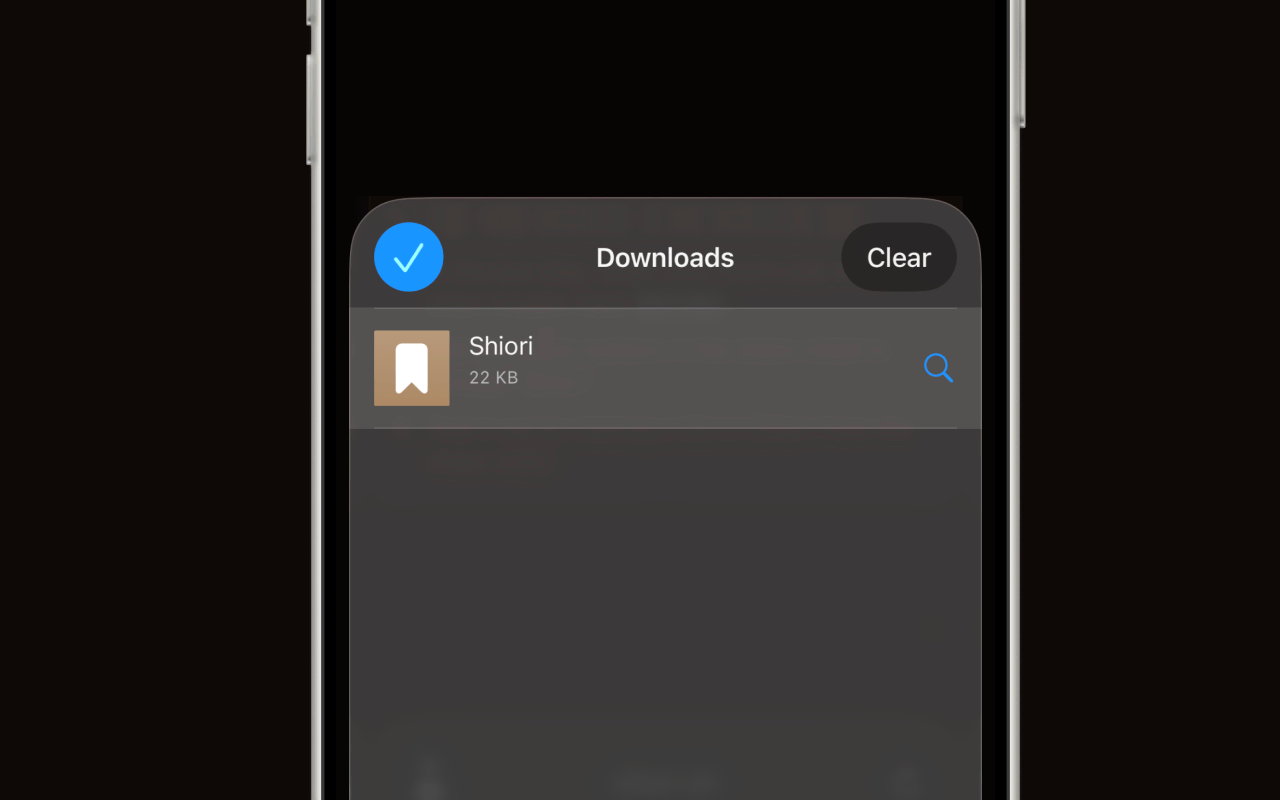
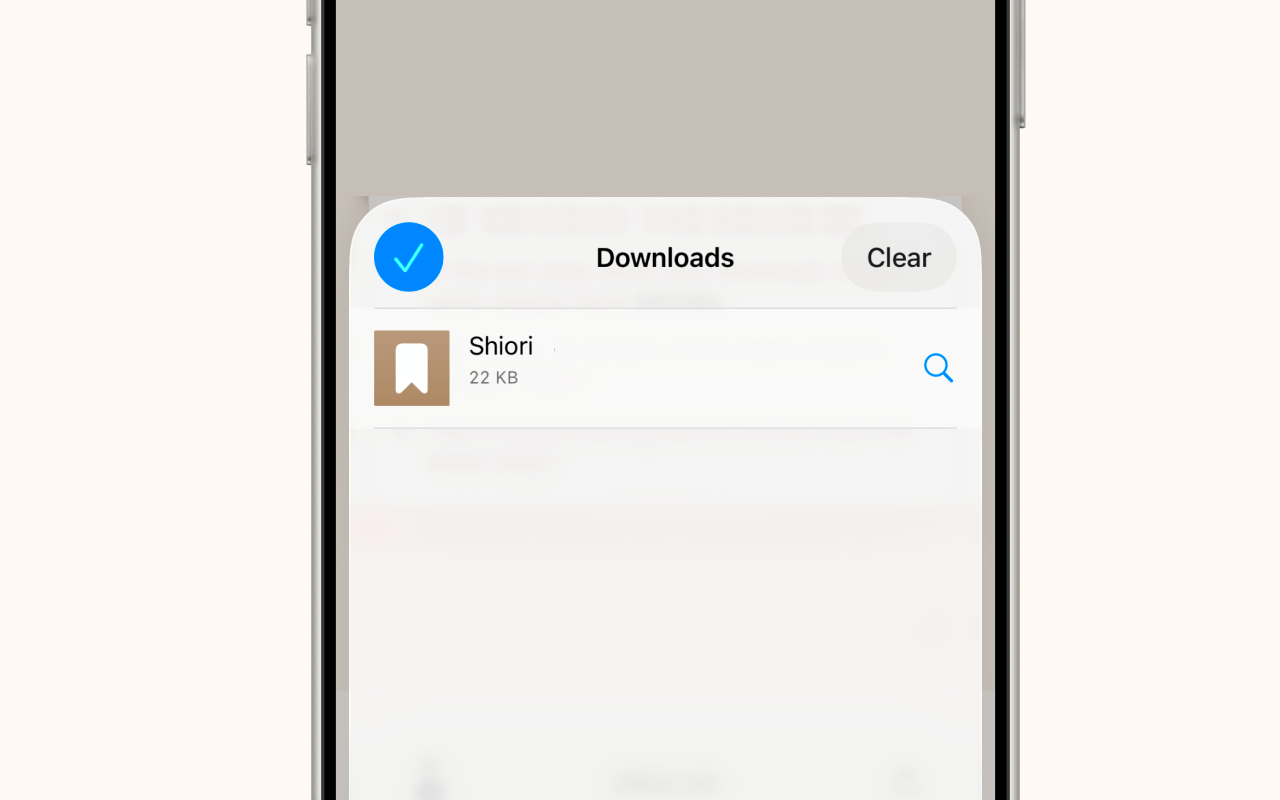
Tap Downloads from the menu. You'll see the Shiori shortcut file listed.
5. Open the shortcut file
Tap the Shiori file in the Downloads list. This opens it in the Shortcuts app.
6. Add the shortcut
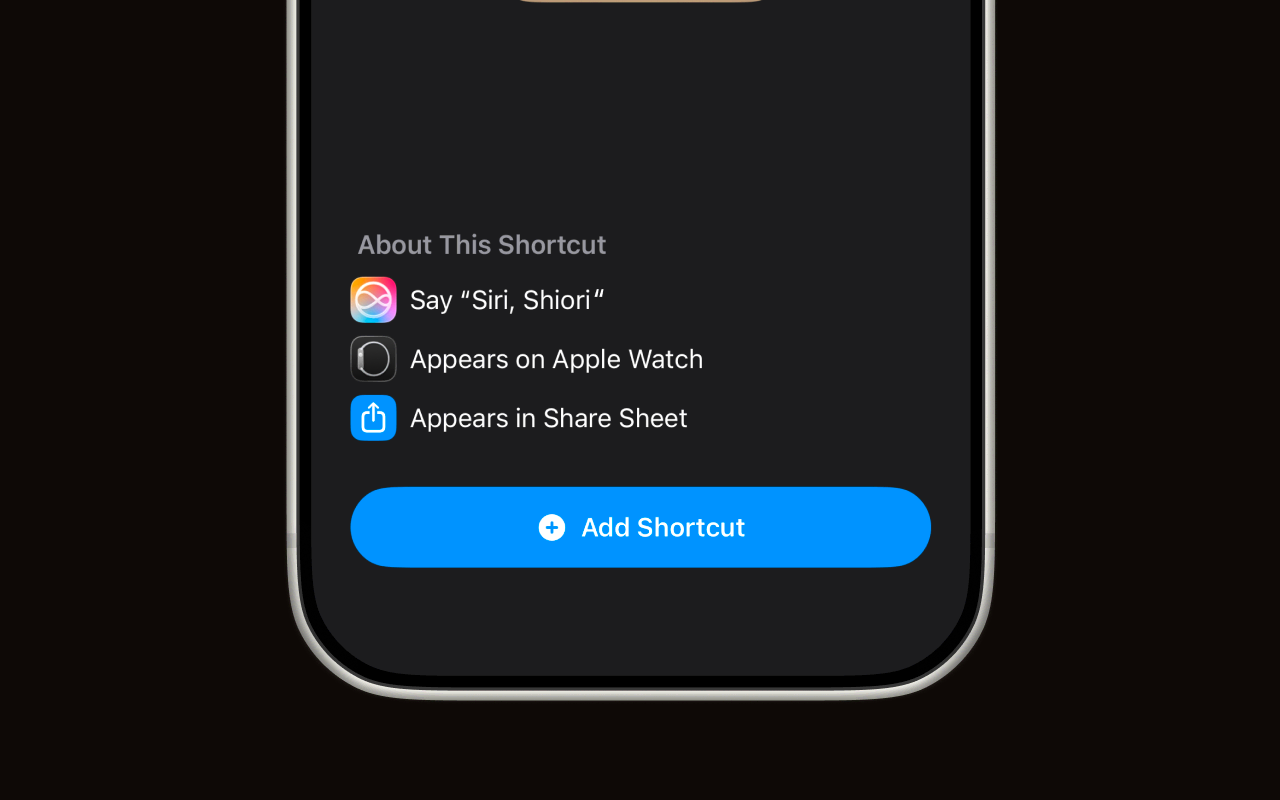
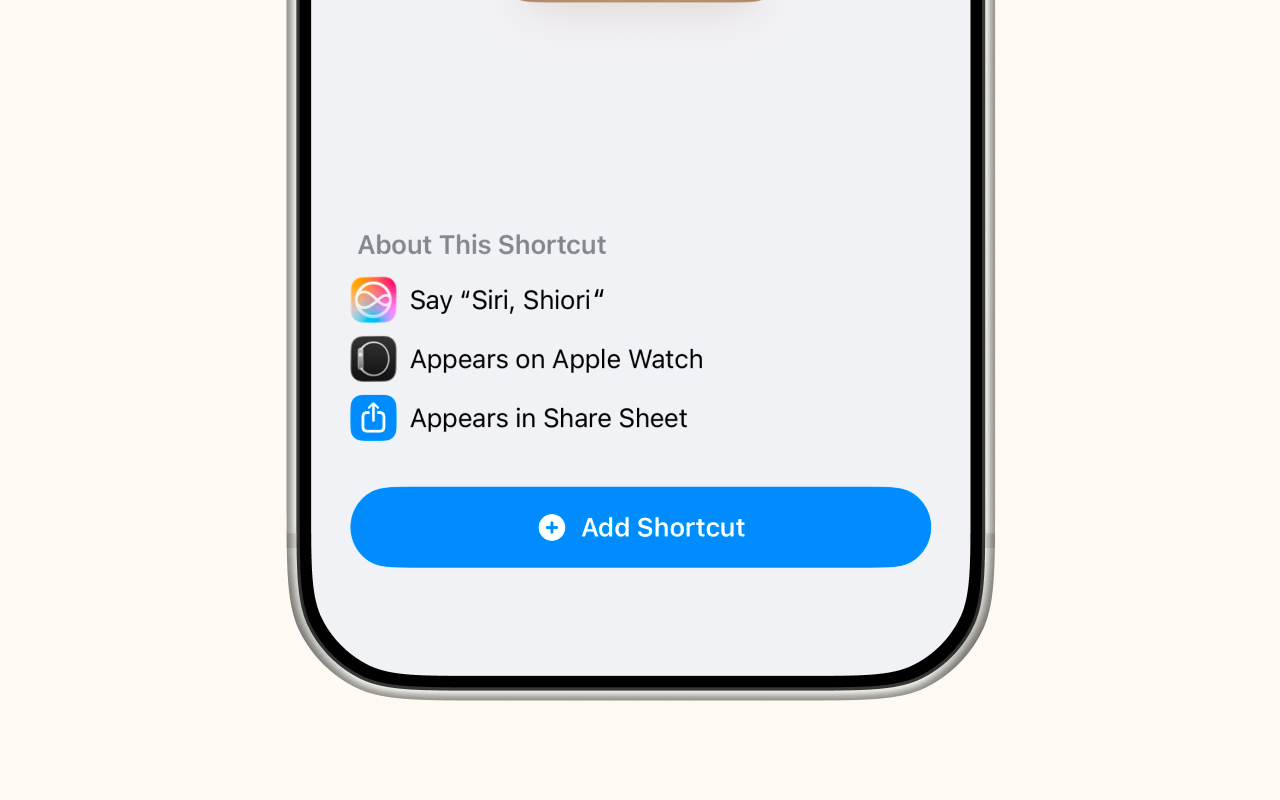
The Shortcuts app will show you a preview of the shortcut. You'll see it can be triggered via Siri ("Siri, Shiori"), from Apple Watch, and from the Share Sheet. Tap the blue Add Shortcut button.
7. Enter your shortcode
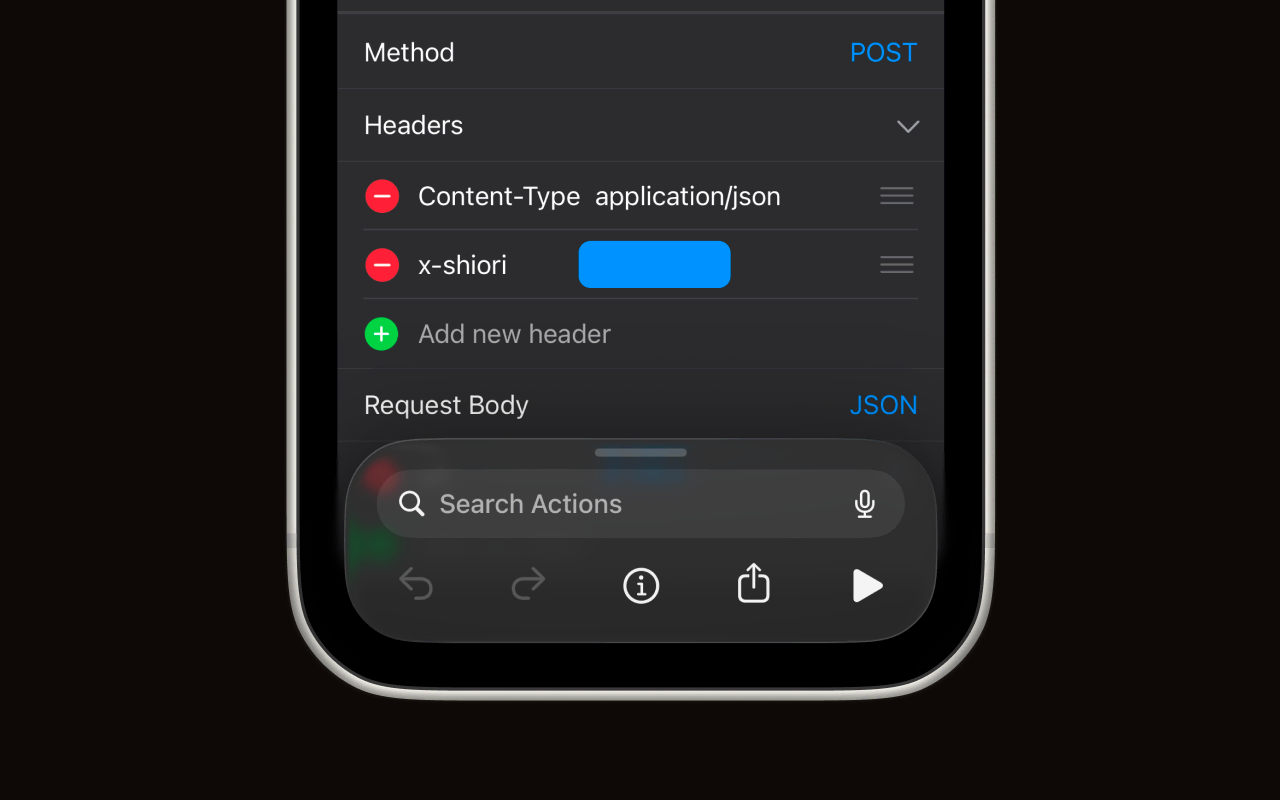
After adding, open the shortcut to edit it. Expand the last step of the shortcut and find the Headers section — you'll see a Content-Type header and an x-shiori header. Tap the x-shiori field and paste the shortcode you copied in Step 1.
8. Open the share sheet
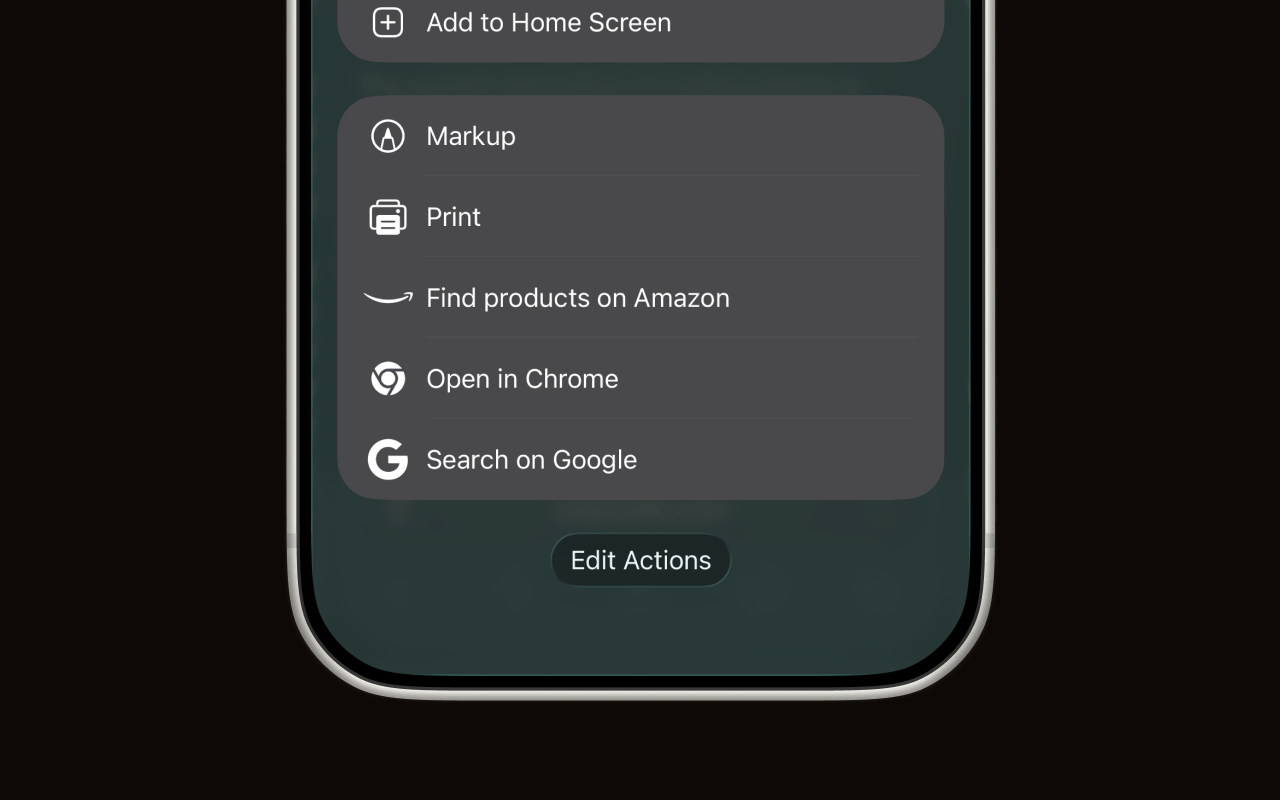
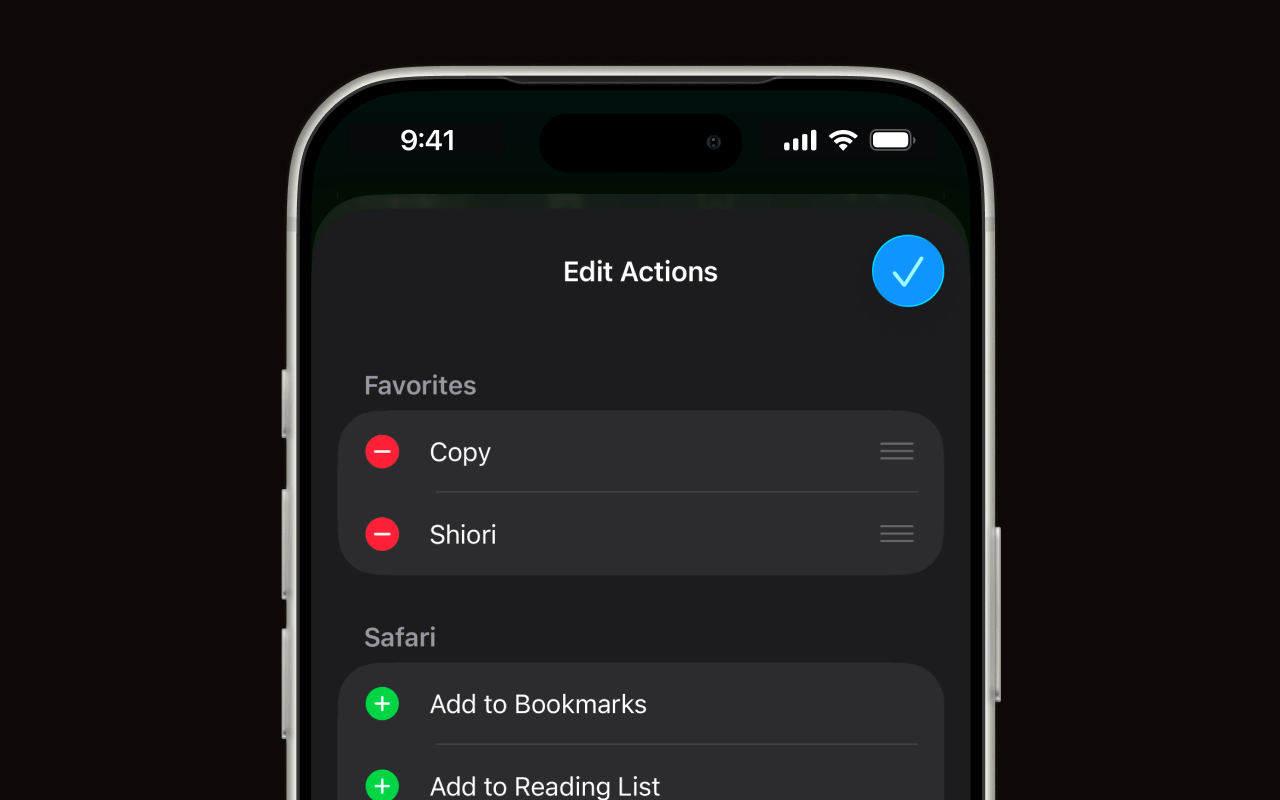
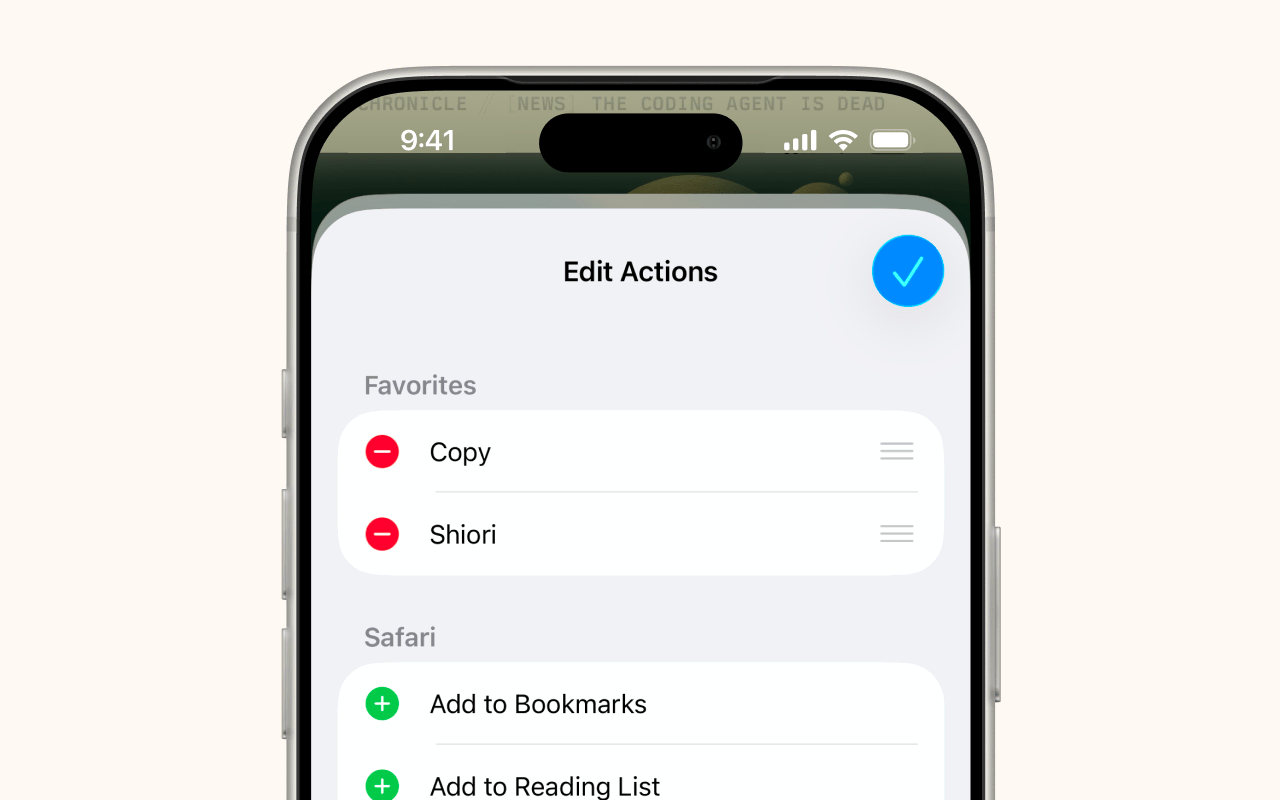
Now let's add Shiori to your share sheet for quick access. Open any page in Safari or another app, tap the Share button, then scroll down to the bottom and tap Edit Actions.
9. Add Shiori to your favorites
In the Edit Actions screen, find Shiori in the list and tap the green + button to add it to your Favorites. You can drag it to reorder. Tap the blue checkmark when done.
10. Save links from the share sheet
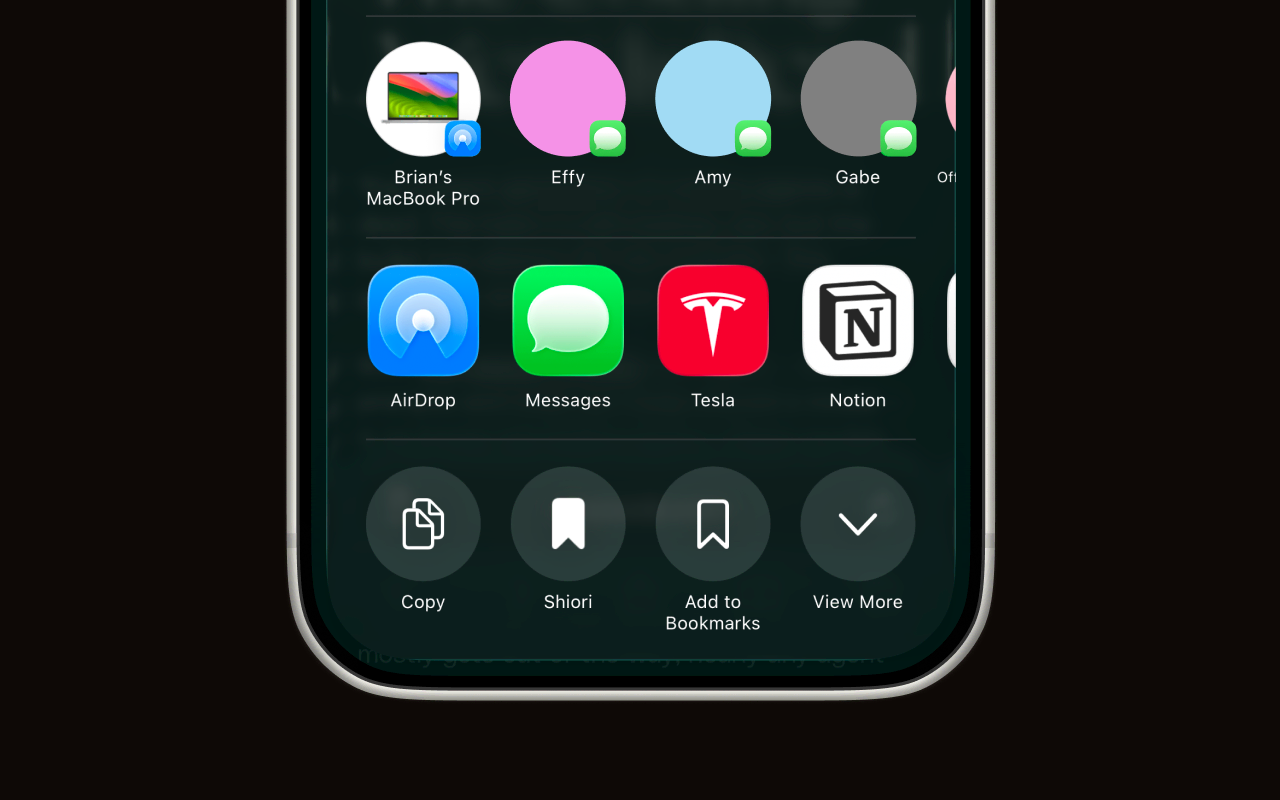
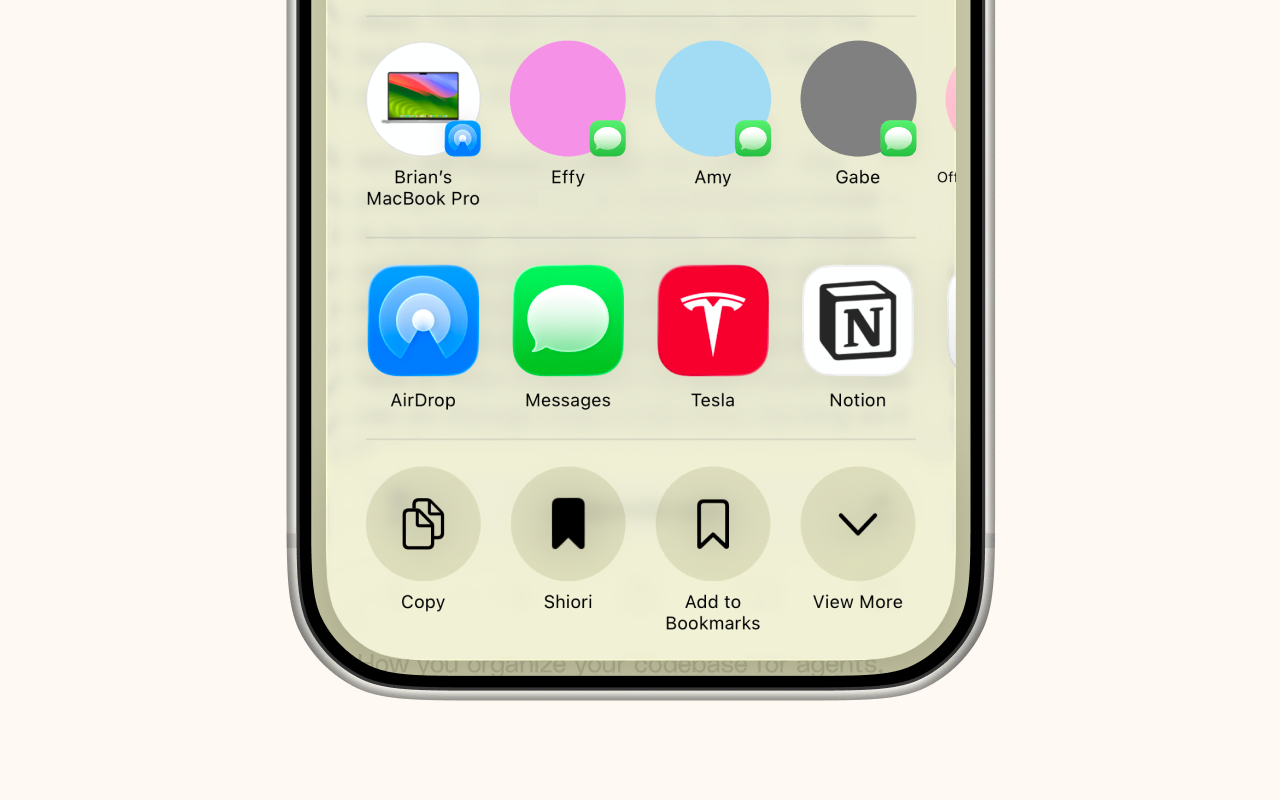
You're all set. Open any page, tap Share, and you'll see Shiori right in the quick actions row. Tap it to save the link to your reading list.
Troubleshooting
The shortcut says "not allowed" or returns an error
Your shortcode may be incorrect. Open the Shortcuts app, find the Shiori shortcut, tap the ... menu to edit it, and verify the x-shiori header value matches the code shown in your Shiori dashboard.
Shiori doesn't appear in the share sheet
Make sure you completed Steps 8–9. Open the share sheet, tap Edit Actions, and check that Shiori is in your Favorites list. If the shortcut isn't listed at all, you may need to restart your device due to a bug in iOS.
The link doesn't show up in Shiori
Links are processed in the background and usually appear within a few seconds. If a link still hasn't appeared after a minute, check that you're sharing a valid URL (not a search query or app-specific link).
My shortcode leaked
Open the Shiori dashboard, go to Settings, and click Regenerate next to your shortcode. Then update the x-shiori header in the Shortcuts app with your new code (see Step 7).